%20rotate(-45)'/%3e%3cpath%20id='Rectangle_4'%20data-name='Rectangle%204'%20class='cls-2'%20d='M77.46,23.45l14.57-14.57c11.84-11.84,31.03-11.84,42.87,0l43.94,43.94c11.84,11.84,11.84,31.03,0,42.87l-14.57,14.57h0L77.46,23.45h0Z'/%3e%3cg%3e%3cpath%20class='cls-1'%20d='M283.26,141.98h-5.3l-12.5-36.8v47.6h-8.8v-70h9l14.9,43.5,15.1-43.5h9.3v70h-9.1v-47.6l-12.6,36.8Z'/%3e%3cpath%20class='cls-1'%20d='M316.15,152.78v-70h29.5v8.3h-20.1v22h17v8.4h-17v23h20.4v8.3h-29.8Z'/%3e%3cpath%20class='cls-1'%20d='M384.55,91.08h-12.2v61.7h-9.4v-61.7h-12.2v-8.3h33.8v8.3Z'/%3e%3cpath%20class='cls-1'%20d='M391.45,152.78v-70h29.5v8.3h-20.1v22h17v8.4h-17v23h20.4v8.3h-29.8Z'/%3e%3cpath%20class='cls-1'%20d='M457.65,152.78l-9.7-28.7h-8.2v28.7h-9.4v-70h17.5c10.6,0,17,4.5,17,14.8v11.7c0,7-3,11.3-8.2,13.4l10.6,30.1h-9.6ZM439.75,115.88h7.7c5.2,0,8-2.1,8-8.3v-8.2c0-6.2-2.8-8.3-8-8.3h-7.7v24.8Z'/%3e%3cpath%20class='cls-1'%20d='M509.95,97.58v12.5c0,10.3-6.4,14.8-17,14.8h-8.1v27.9h-9.4v-70h17.5c10.6,0,17,4.5,17,14.8ZM500.55,99.38c0-6.2-2.8-8.3-8-8.3h-7.7v25.4h7.7c5.2,0,8-2.1,8-8.2v-8.9Z'/%3e%3cpath%20class='cls-1'%20d='M535.15,81.98h.8c10.6,0,17,4.5,17,14.8v42c0,10.3-6.4,14.8-17,14.8h-.8c-10.6,0-17-4.5-17-14.8v-42c0-10.4,6.4-14.8,17-14.8ZM535.55,145.28c5.2,0,8-2.1,8-8.3v-38.4c0-6.2-2.8-8.3-8-8.3s-8,2.1-8,8.3v38.4c0,6.2,2.8,8.3,8,8.3Z'/%3e%3cpath%20class='cls-1'%20d='M591.05,152.78l-9.7-28.7h-8.2v28.7h-9.4v-70h17.5c10.6,0,17,4.5,17,14.8v11.7c0,7-3,11.3-8.2,13.4l10.6,30.1h-9.6ZM573.15,115.88h7.7c5.2,0,8-2.1,8-8.3v-8.2c0-6.2-2.8-8.3-8-8.3h-7.7v24.8Z'/%3e%3cpath%20class='cls-1'%20d='M637.75,91.08h-12.2v61.7h-9.4v-61.7h-12.2v-8.3h33.8v8.3Z'/%3e%3cpath%20class='cls-1'%20d='M663.05,136.28h-15l-3,16.5h-9.1l13.9-70h11.6l14.1,70h-9.6l-2.9-16.5ZM661.55,128.38l-6-33.8-6.1,33.8h12.1Z'/%3e%3cpath%20class='cls-1'%20d='M710.85,152.78h-28.3v-70h9.4v61.5h18.9v8.5Z'/%3e%3c/g%3e%3c/g%3e%3c/g%3e%3c/svg%3e)
Add your address
Search for your address, or use the details from your latest bill.
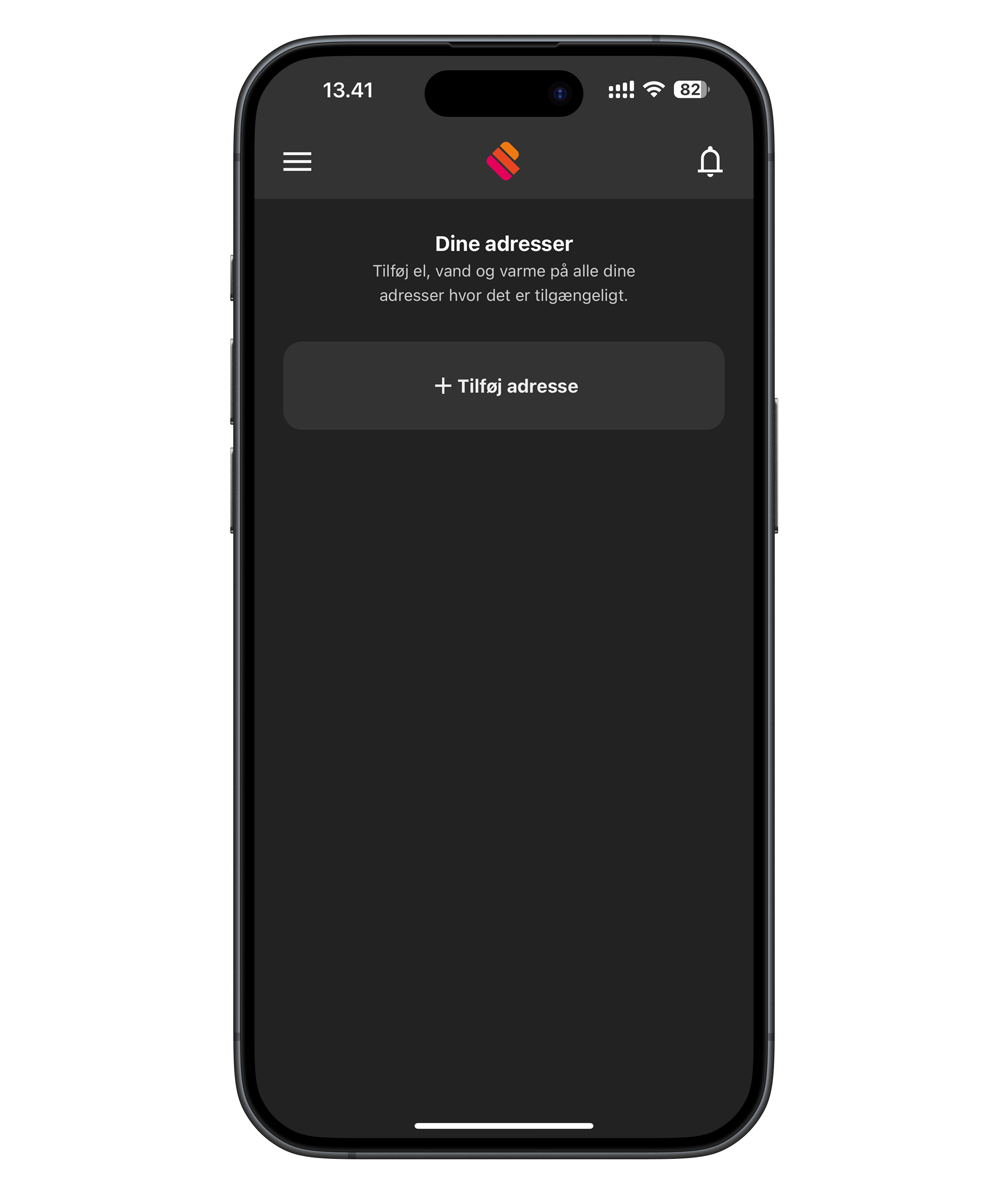
Let's get started!
Tap "Add address" to begin.
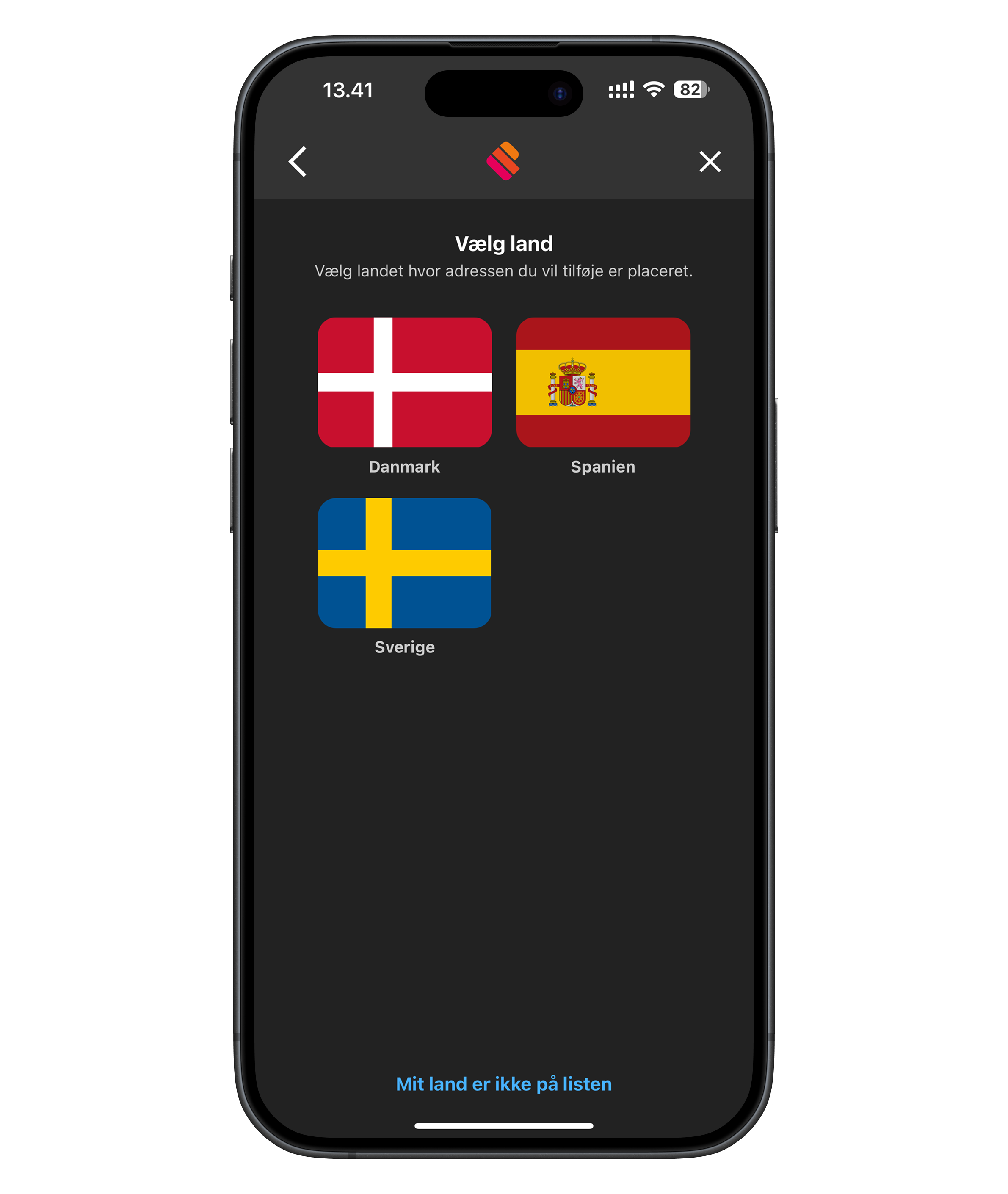
The first thing you need to do is choose a country.
This is the country where the address or addresses you want to add are located.
Select your country.
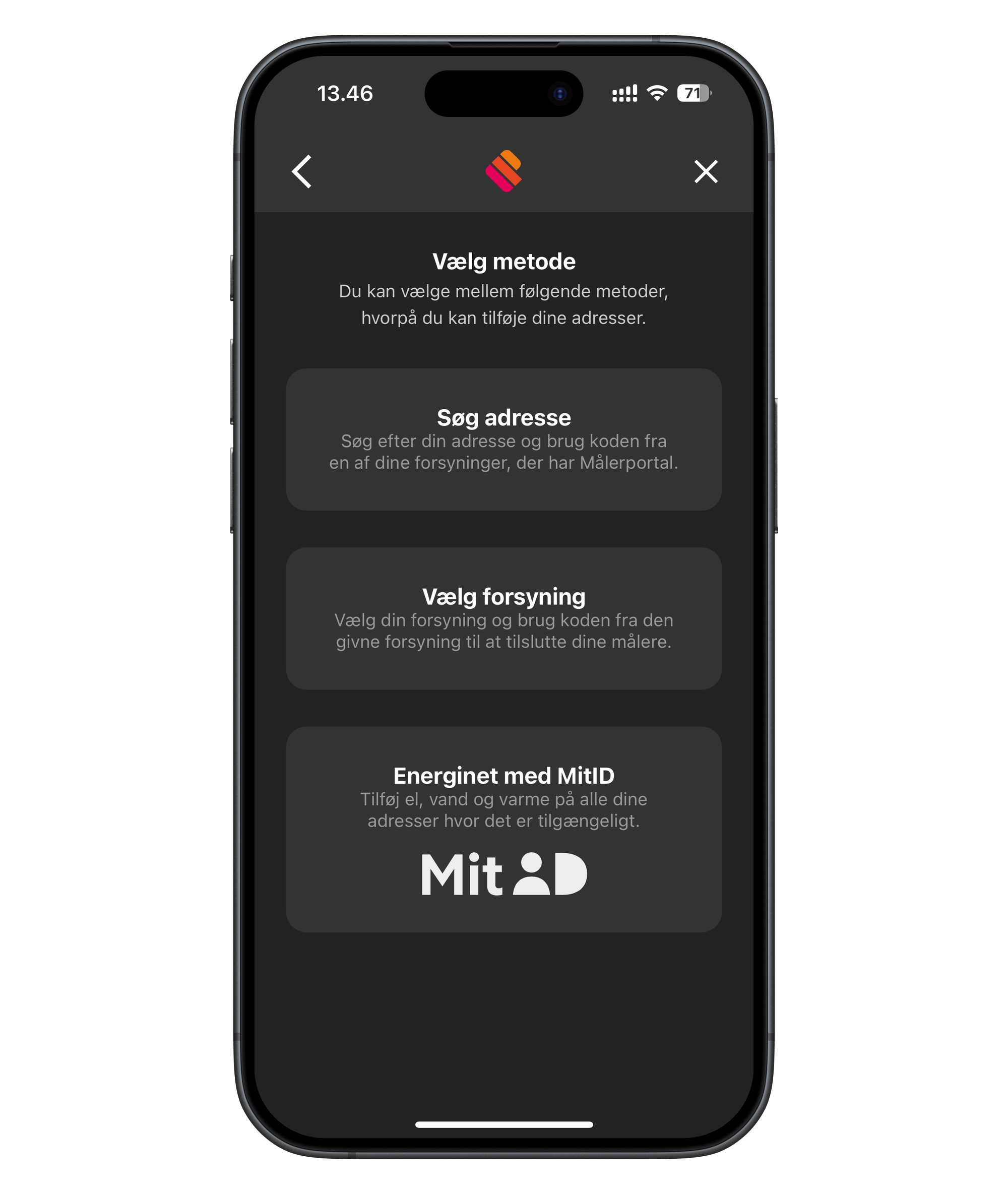
Once you have chosen a country, you can add your address in the following ways:
Search address - add by searching for your address
Choose utility - add by searching for your utility
Applies to Denmark
Energinet with MitID – here you will need MitID and possibly your latest bill from your electricity provider.
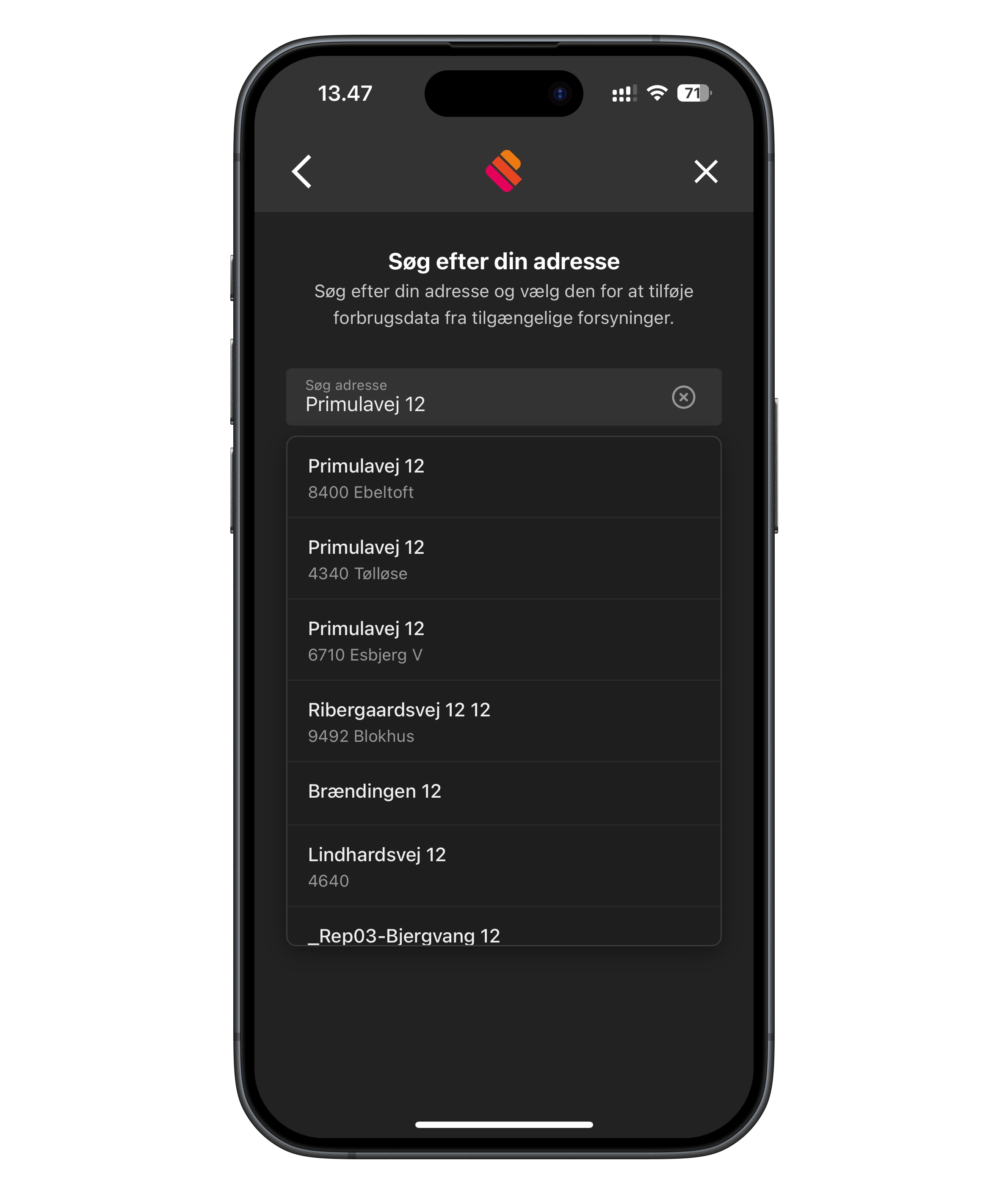
Search address
Enter your address and select the correct one from the list.
(You need to type the full street name before it shows anything)
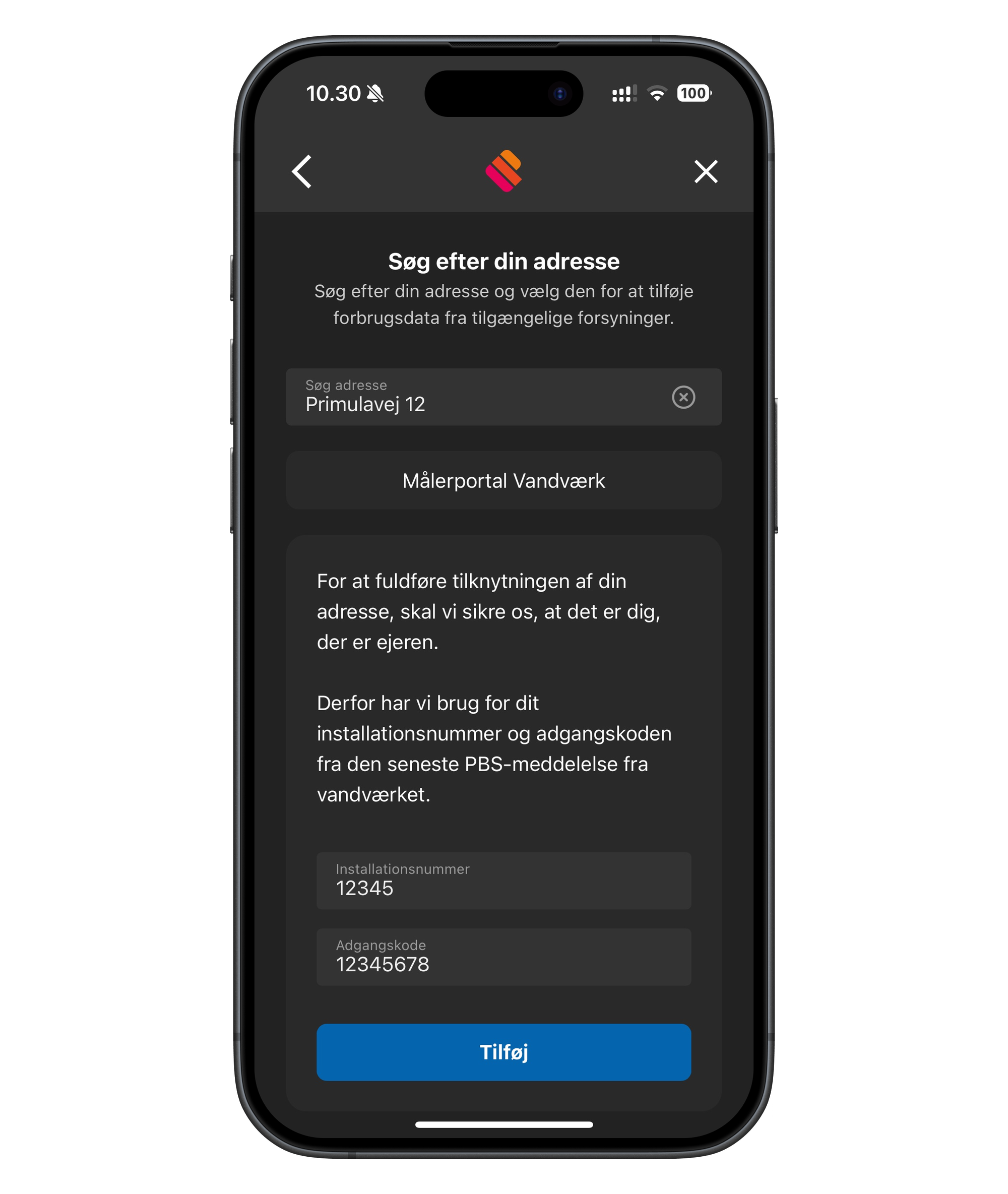
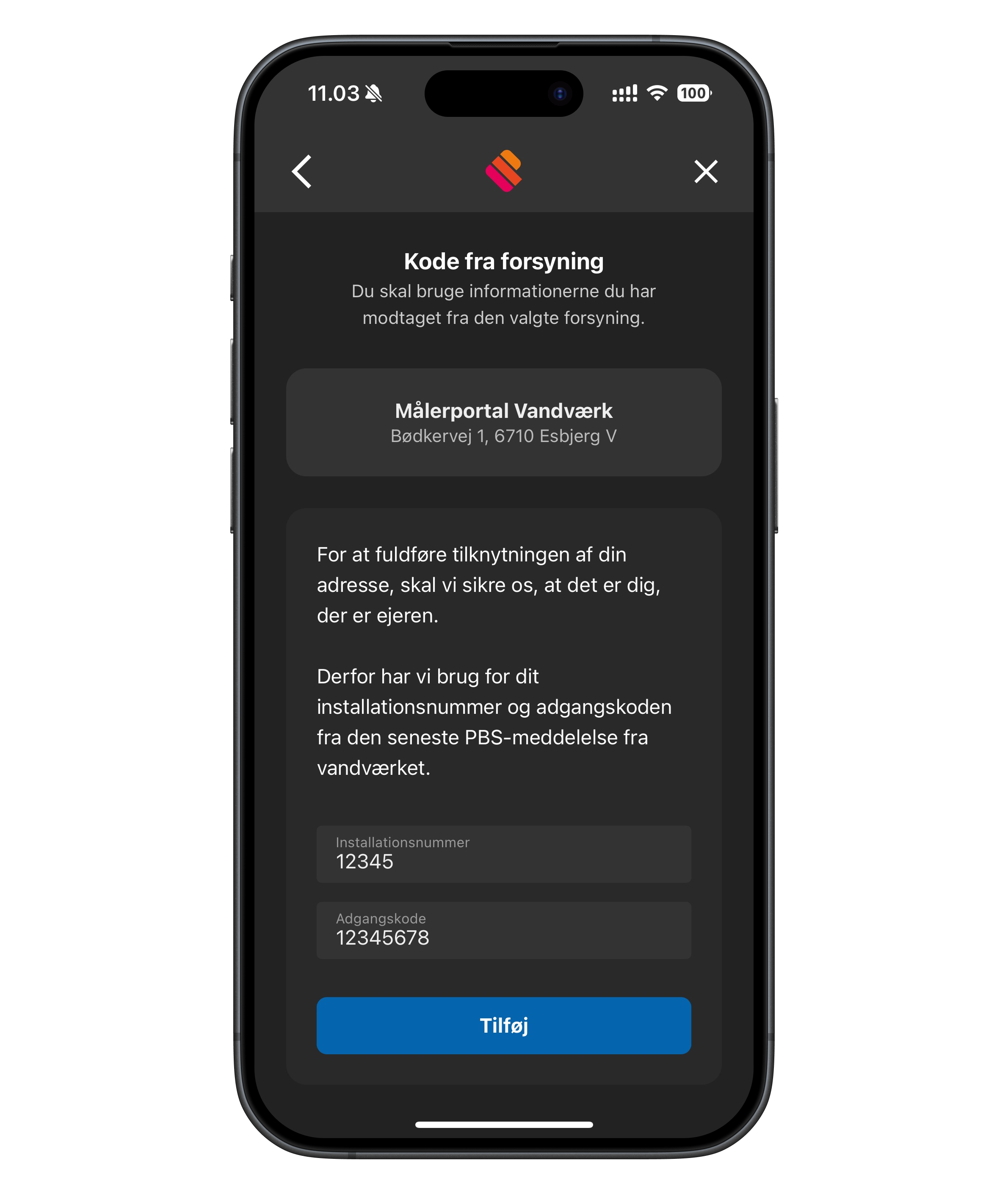
Now fill in the information shown on the screen. It is often found on your latest invoice from your utility, or it is stated directly in the message you have received from the utility.
Finish by tapping "Add"
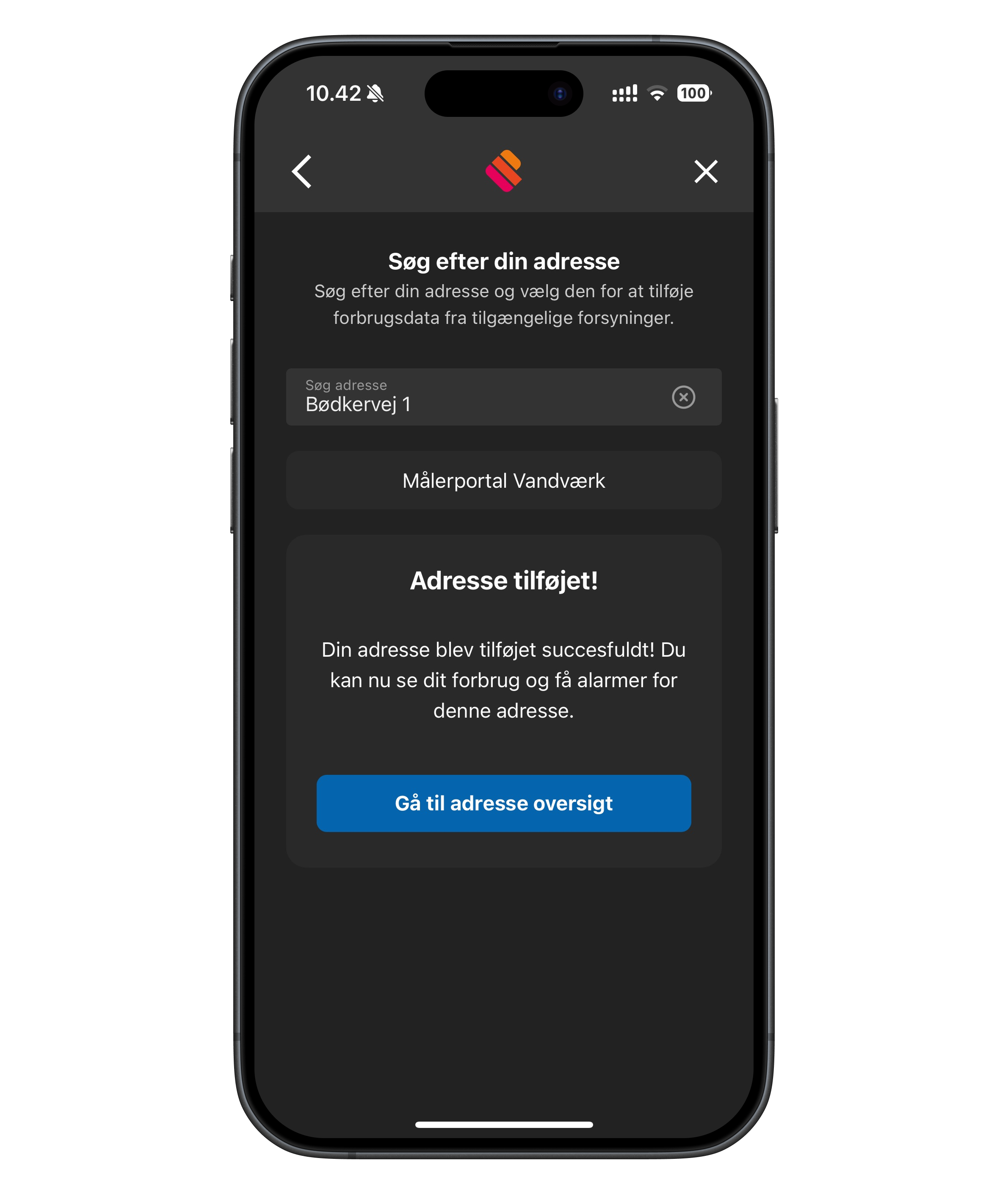
Now tap "Go to address overview"
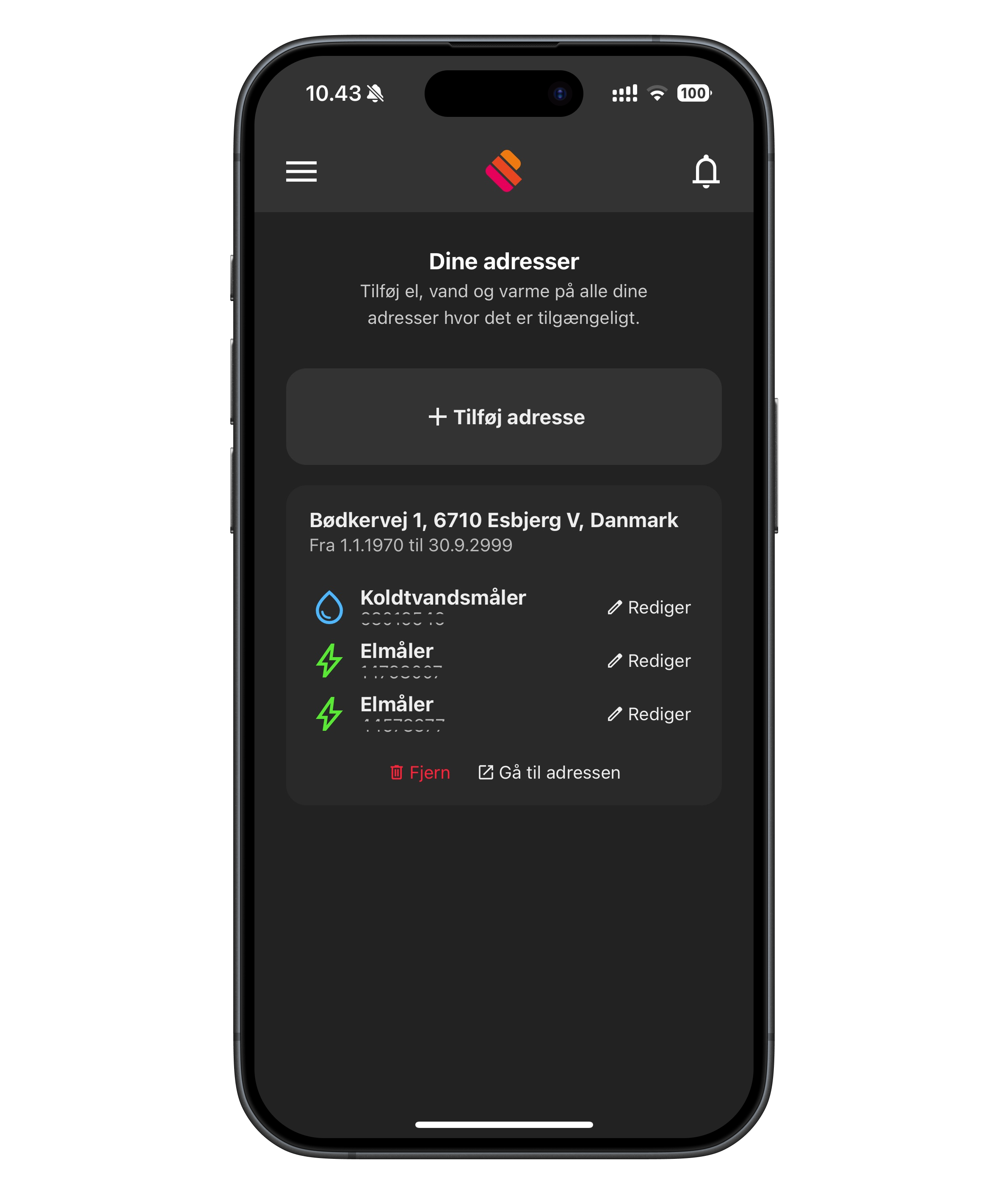
where your address will then be displayed
Tap "Go to the address" to see your consumption
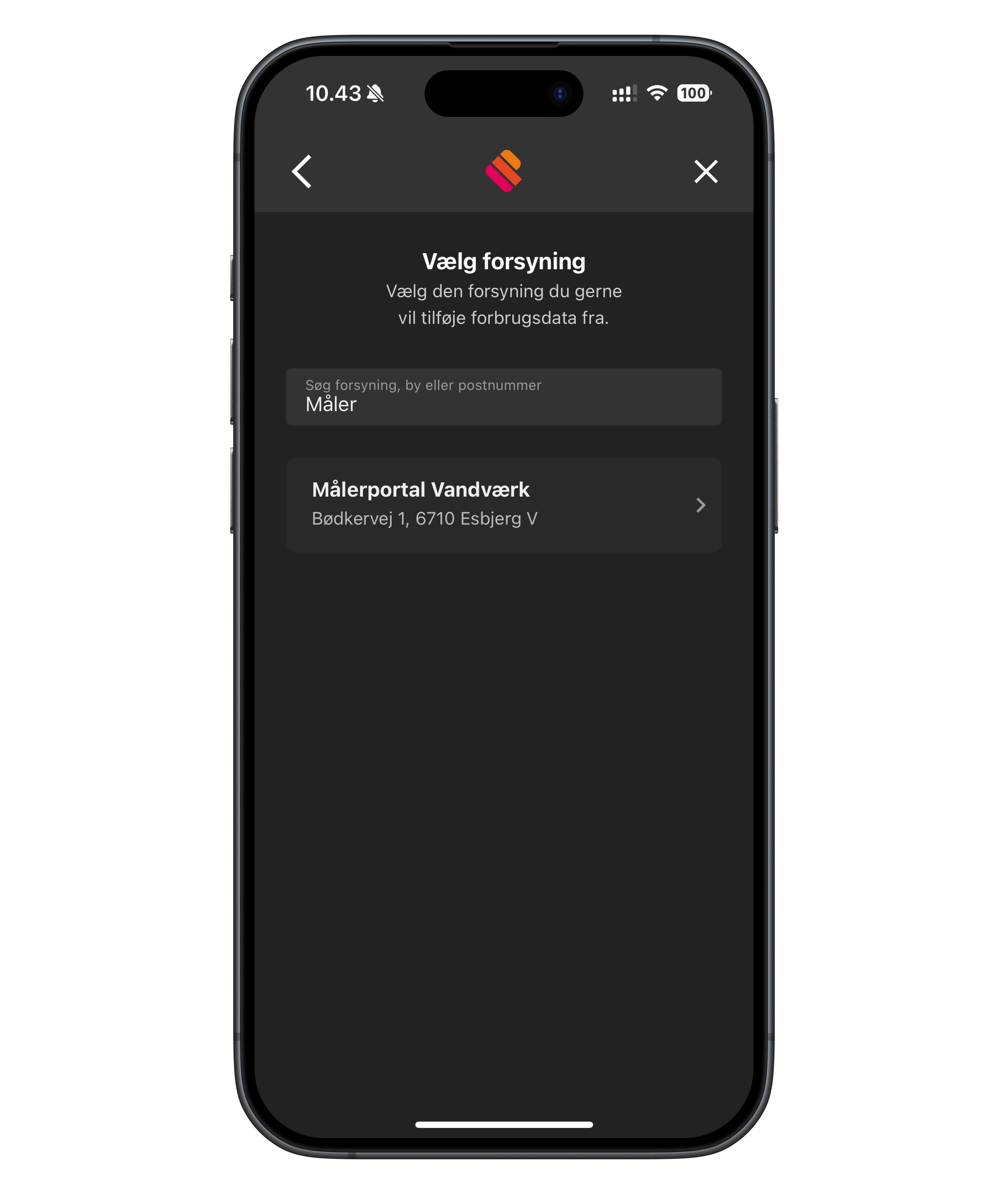
Search utility
Enter the name of your utility or select the correct one from the list.
Now fill in the information shown on the screen. It is often found on your latest invoice from your utility, or it is stated directly in the message you have received from the utility.
Finish by tapping "Add"
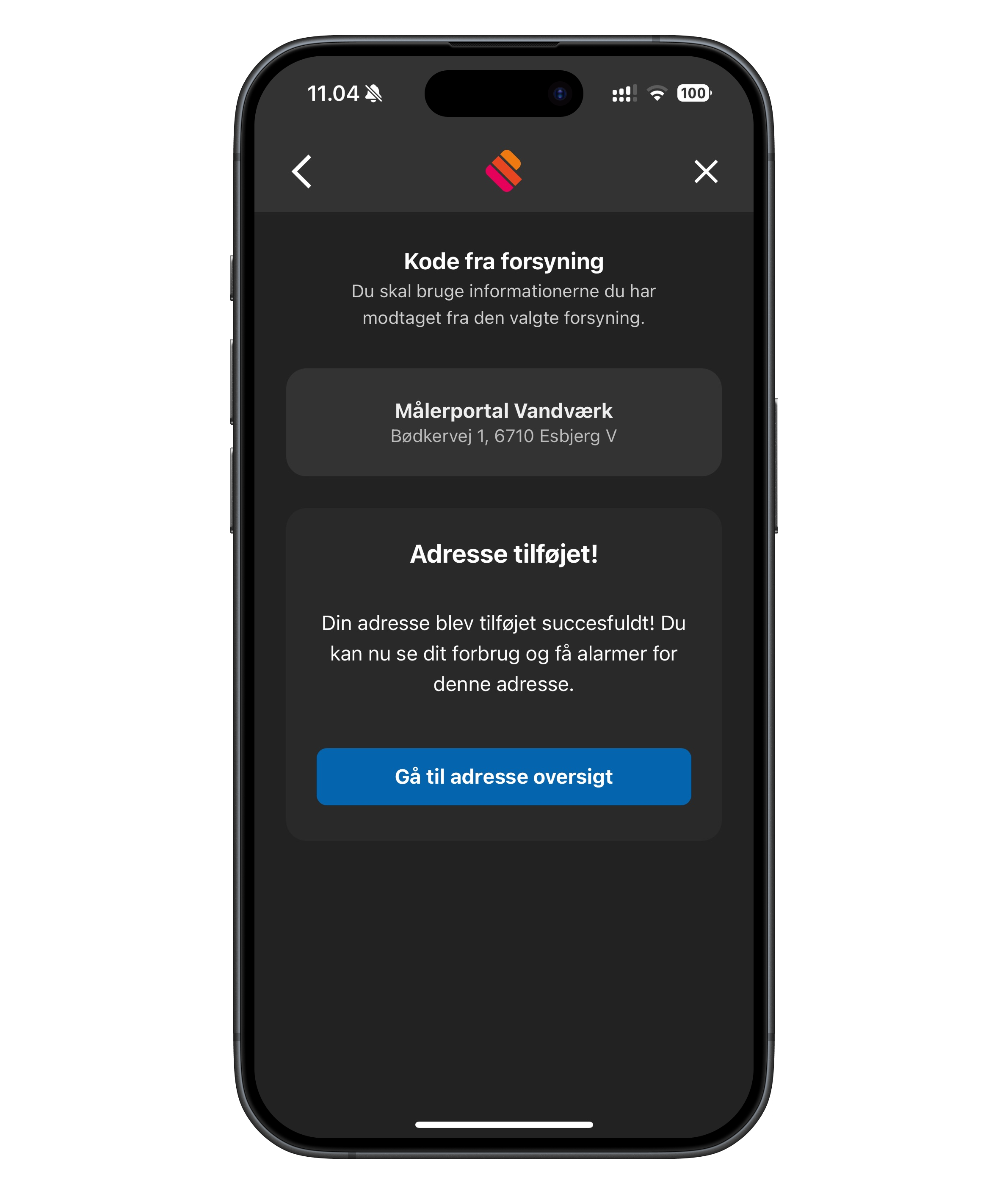
Now tap "Go to address overview"
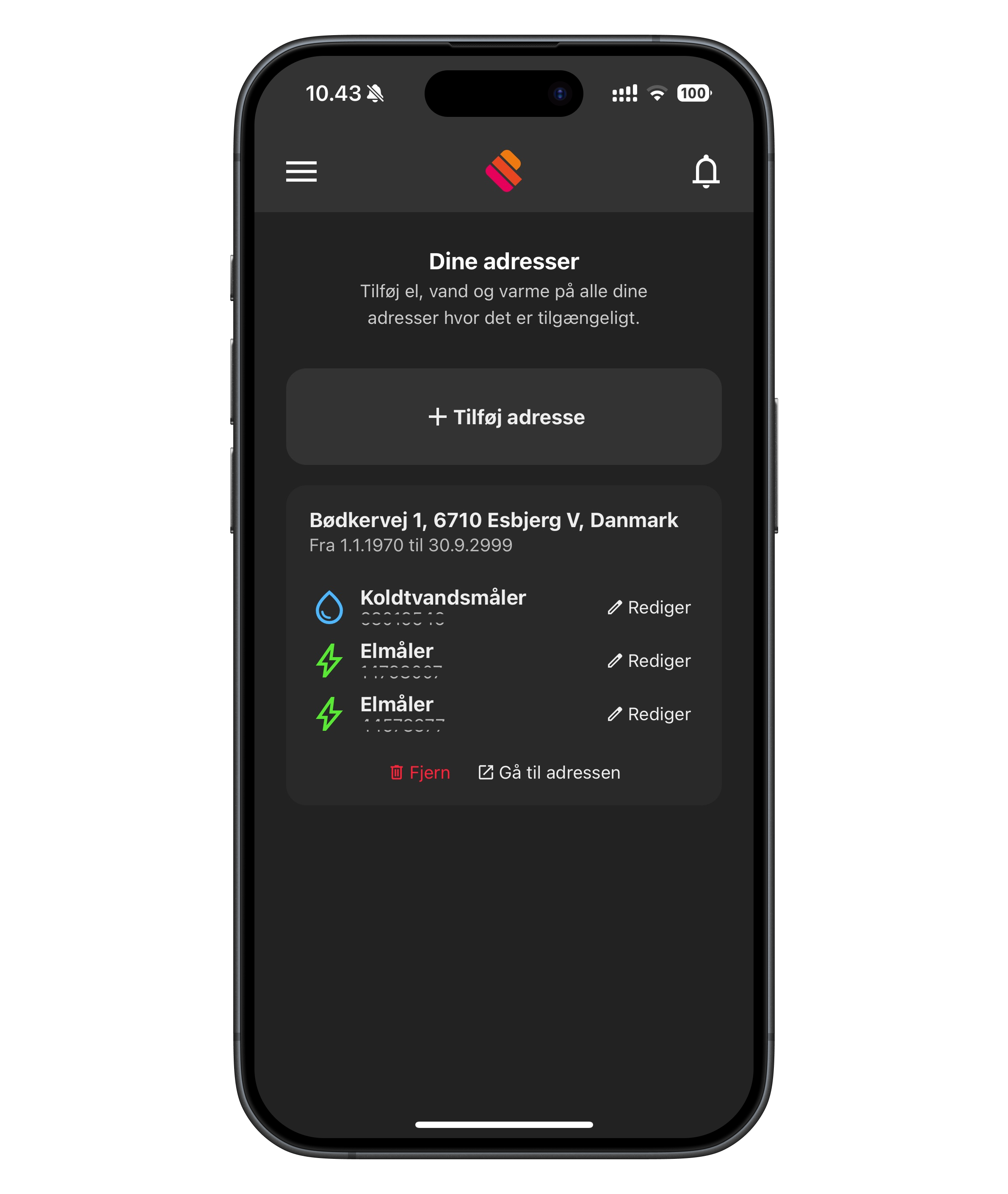
where your address will then be displayed
Tap "Go to the address" to see your consumption
Applies to Denmark
Energinet with MitID
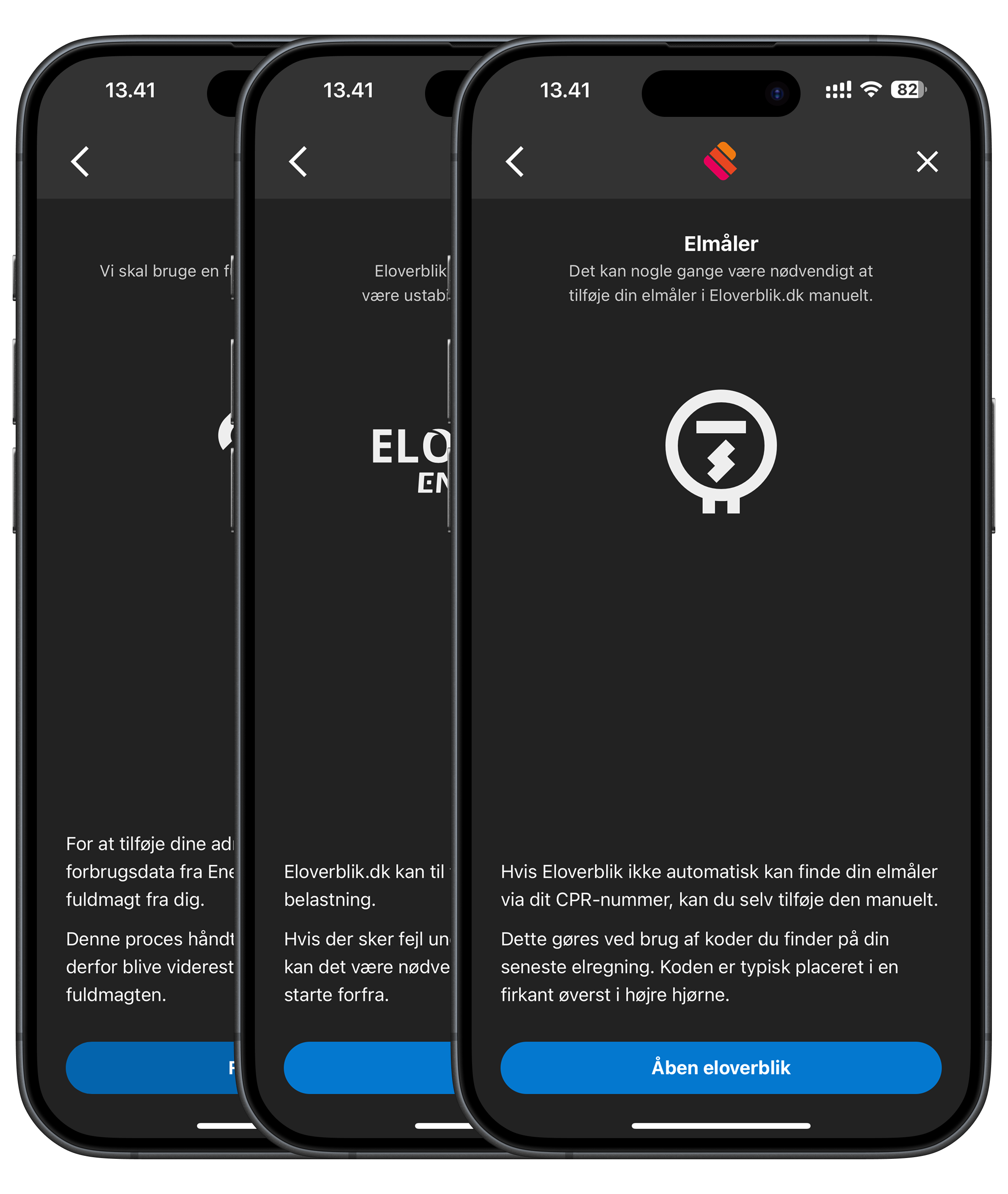
Tap "Continue with MitID" to add your address via Eloverblik.
You will then receive some information about the process in Eloverblik and what you need to have ready.
Once you have read the messages, you can simply tap to continue.
Tap "Open Eloverblik", and a new tab will open with Eloverblik.
Tap "Log in with MitID" to continue.
If this is the first time you log in to Eloverblik, they will ask for your CPR number. Enter your CPR number and continue.
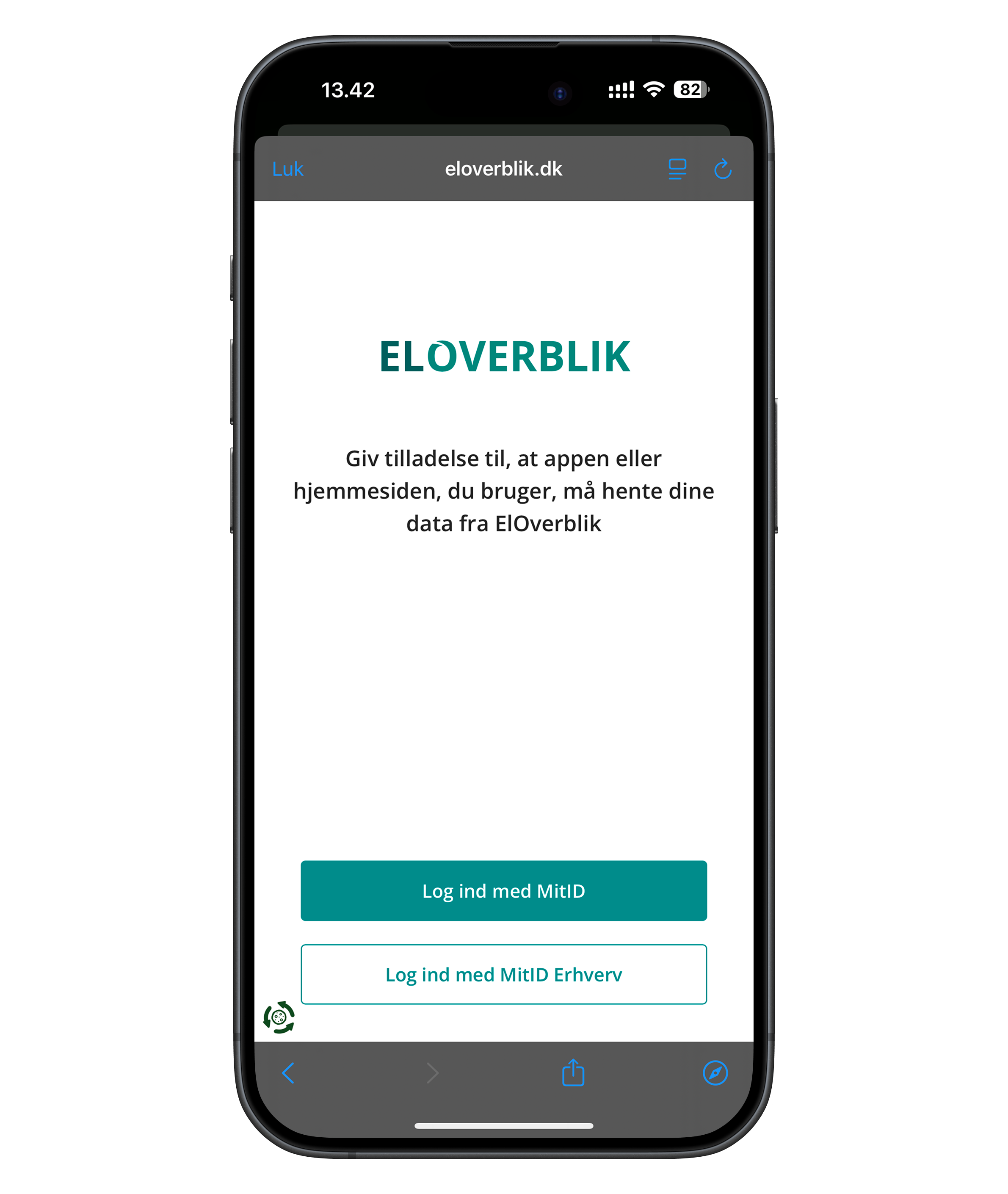
Once you are logged in to Eloverblik, you need to select the meters you want to bring into Meterportal.
By default, all of your available meters are already selected.
If there are no meters linked to you, you will instead need to use your latest bill from your electricity provider.
In the top right corner of the bill you will find a box with the information you need.
To add a meter, tap "Add meter"
then enter the details from your latest bill.
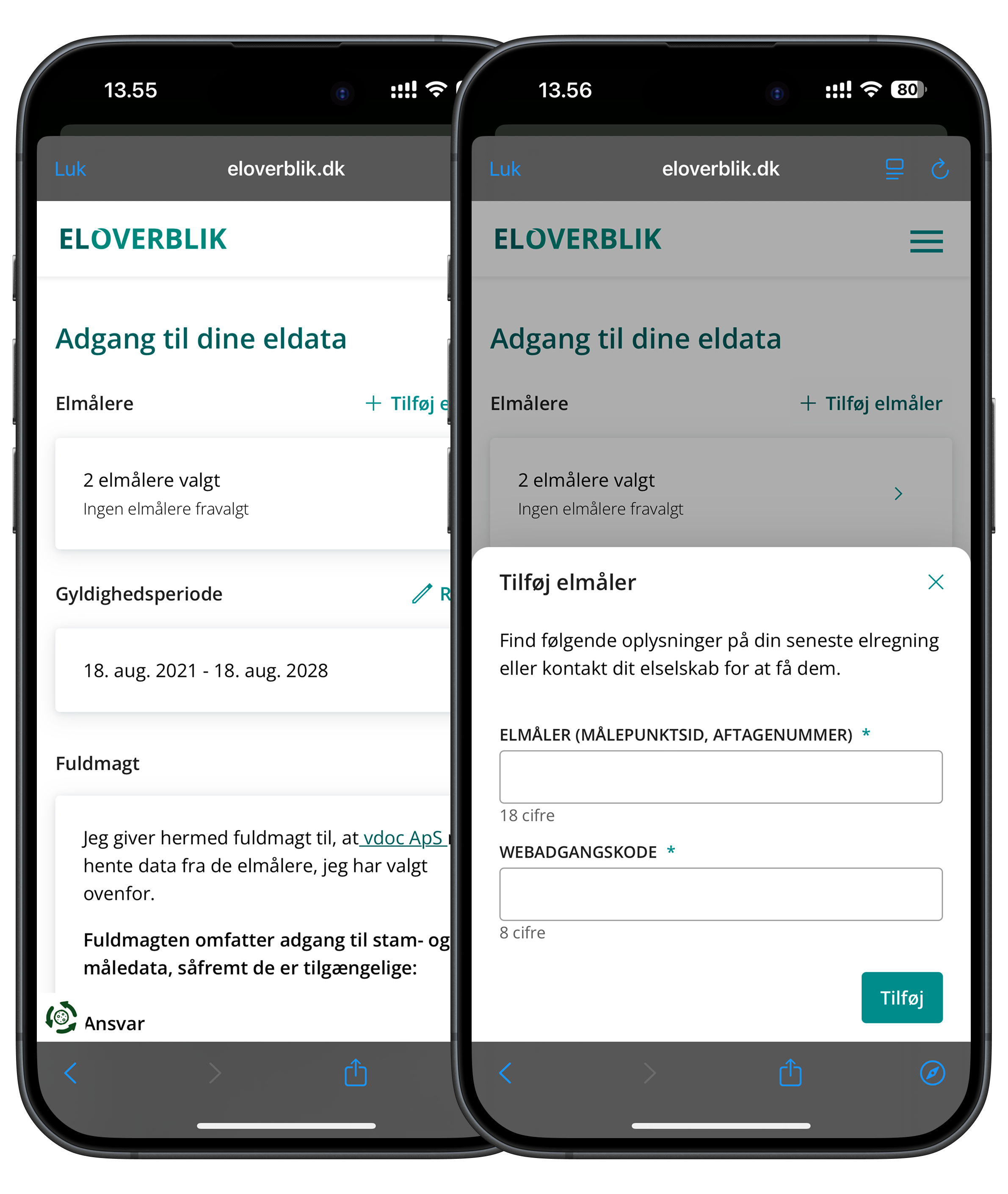
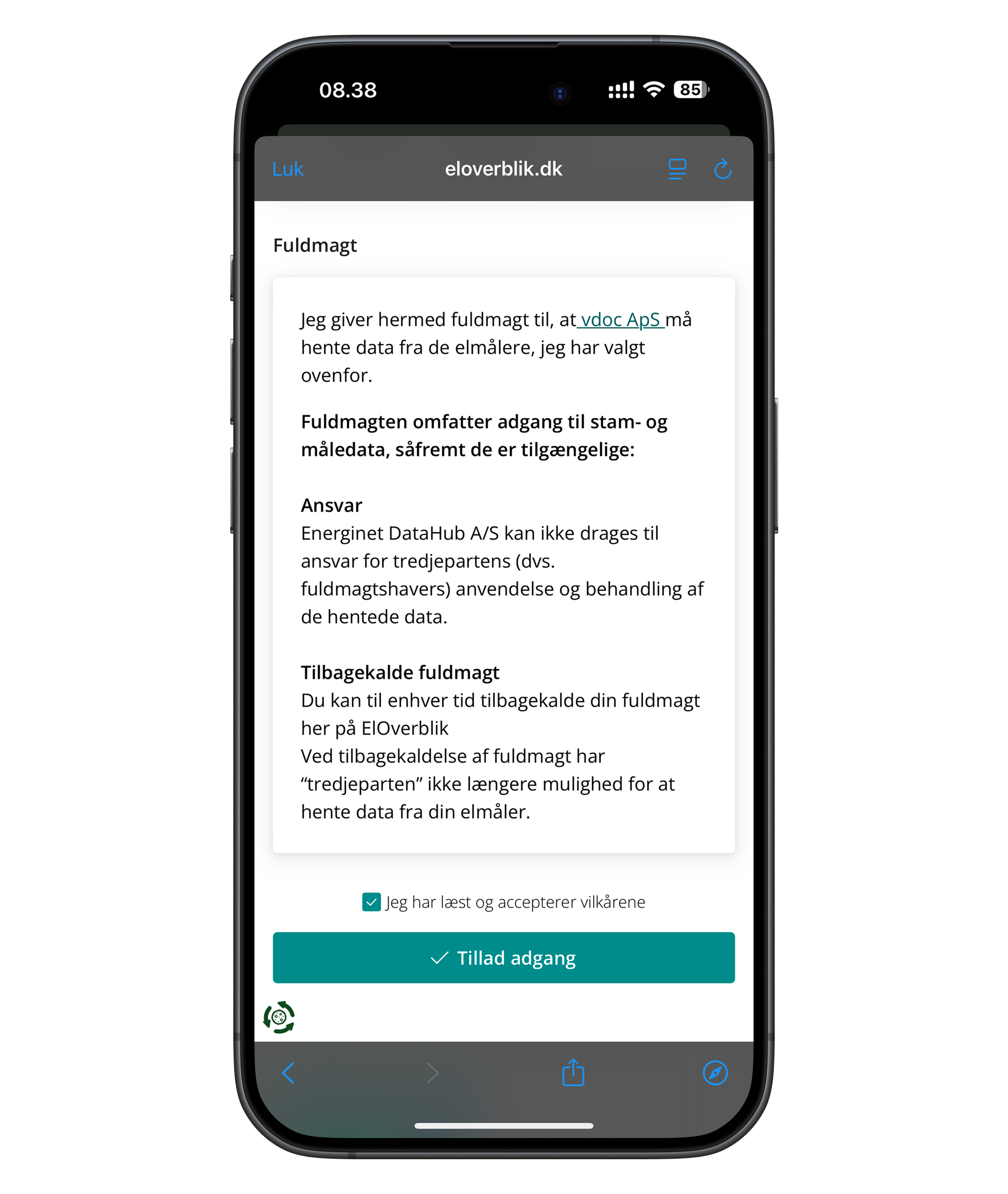
Once you have selected which meters to add, scroll down the page to accept the consent.
Tick the box ✅ "I have read and accept the terms"
Tap "Allow access" to continue.
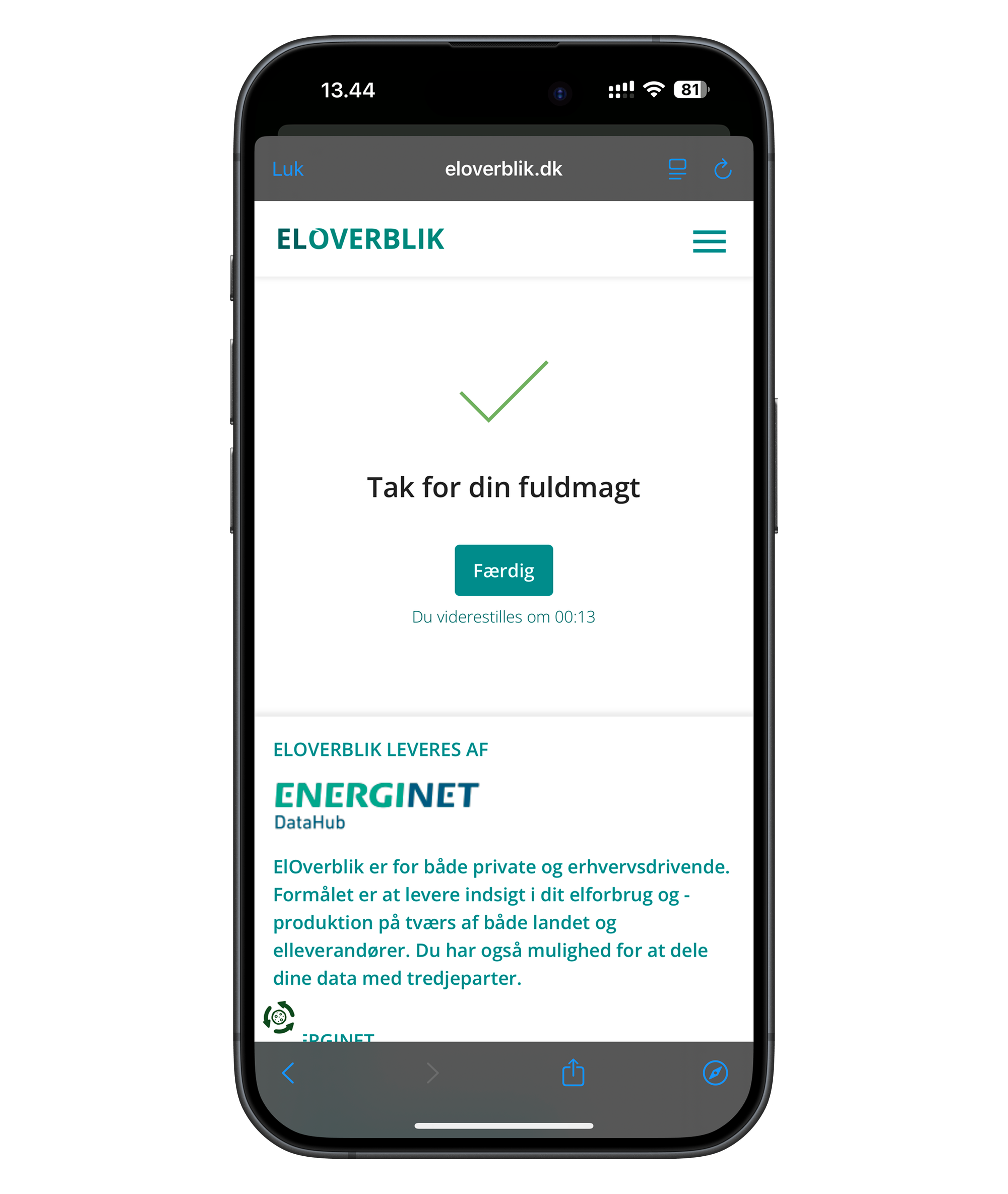
Tap "Done"
...or wait 15 seconds to automatically return to Meterportal.
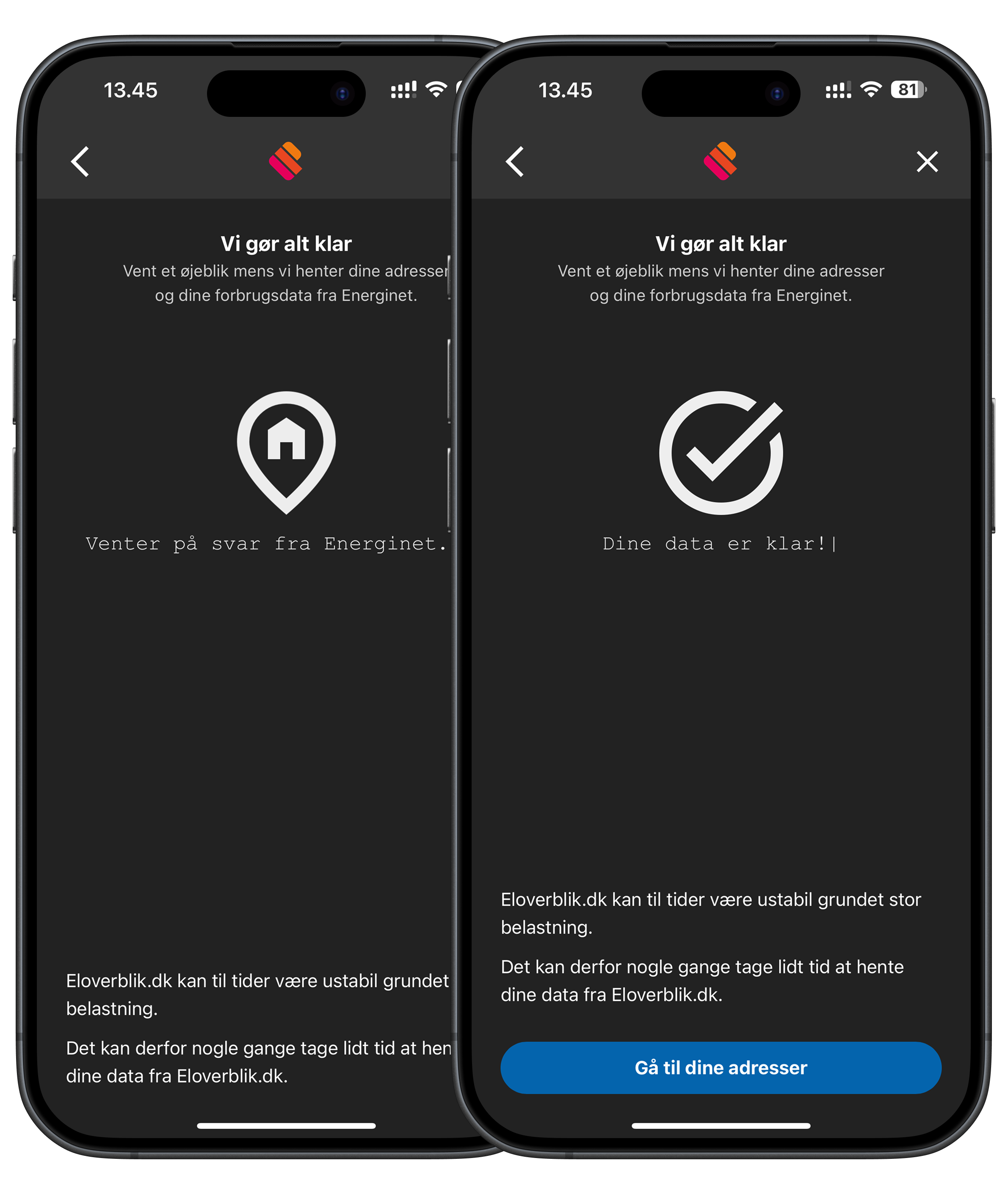
Wait while we retrieve your data from Eloverblik.
This may take a little while, depending on how busy Eloverblik is.
When your data is ready, the "Go to your addresses" button will appear.
Tap it to go to your address overview.
Tap "Go to the address" to see your consumption